Extend 1000-point functionality
To make new substances immediately visible
Using the system settings it is possible to indicate what the visibility should be for newly imported substances. It can be indicated that a new SOFOS substance or a new substance from the third-party database (BIG, DGZ, AZH or Chemwatch) should be immediately visible on the information portal. It can also be indicated that newly imported substances can be released immediately and are therefore immediately visible in the substance overview within the SOFOS management environment.
Hide existing substances
When a substance is set to expired by the supplier of the database third parties, this substance will also be set to expired after updating in SOFOS. However, you may want to set a DBD substance to expired yourself to indicate that the organization can no longer make use of the substance. You can hide the substance from your organization by clicking on 'Expired for our organization'. The substance will still be updated with the latest substance data but will not be immediately visible in the substance overview or information portal. This checkbox is only visible for DBD substances.
Furthermore, it is now possible to indicate for a substance that the substance is only included in the substance overview as part of a mixture and is used as such in the CLP calculation. In this case, the substance is not available as a pure substance. Using the checkbox "Is only a mixture component" on the substances screen, you can mark the substance as a mixture component, after which the substance will no longer be visible on the substances overview or the information portal.
The ability to add additional texts to DBD substances and to hide existing texts of DBD substances on the WIK
When you transfer substance data from the database to third parties, the texts linked to that substance are also transferred. It may be that you yourself want to add specific texts to these texts or replace existing texts with texts that better suit your organization. From this version it is possible to add extra texts yourself. In addition, you can hide existing texts on the workplace instruction card to show your own texts.
Adding and hiding is done via the text view on the 'Texts' tab on the substance screen.
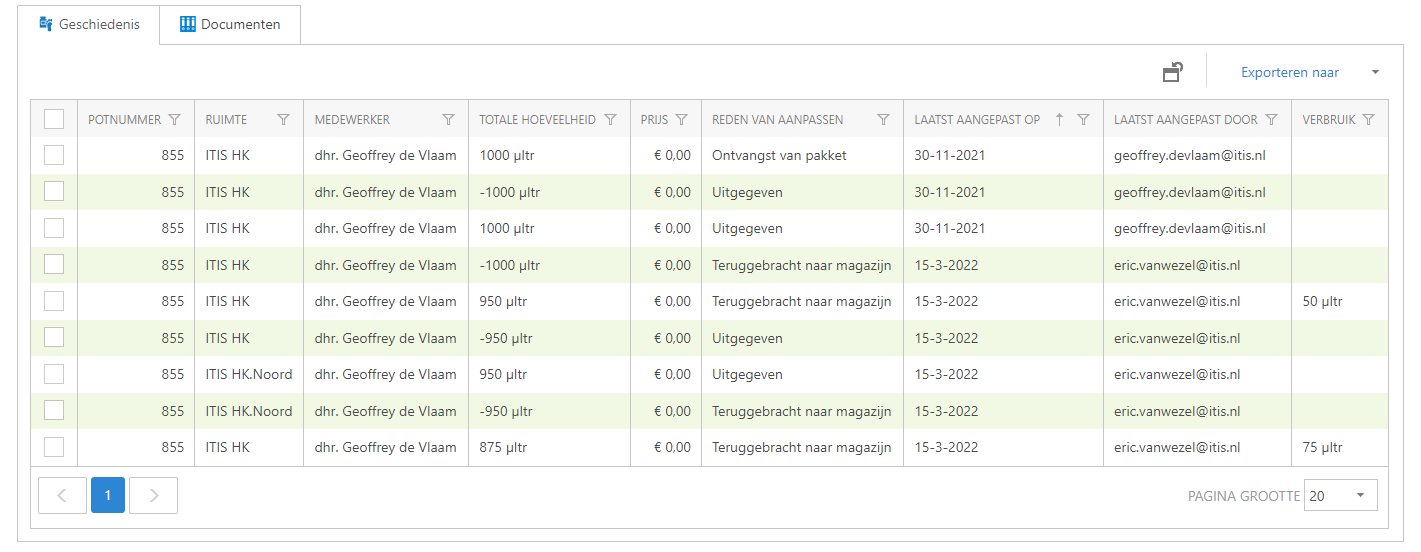
Per pot mutation, the consumption of that mutation is now displayed in the pot history
If the content of a pot is changed during a pot mutation, the individual consumption of the pot is shown with the mutation. This allows you to visualize the consumption of a pot more easily.
Reduce information portals to the department or person associated with the logged-in user
From this version it is also possible to show on the information portal only substances which are linked to the logged in user or to the department where the logged in user is actively working. Furthermore it is also possible to indicate that substances which are not linked to a department or person at all, may still be visible for a logged in user on the information portal.
The introduction of a new blend has been accelerated
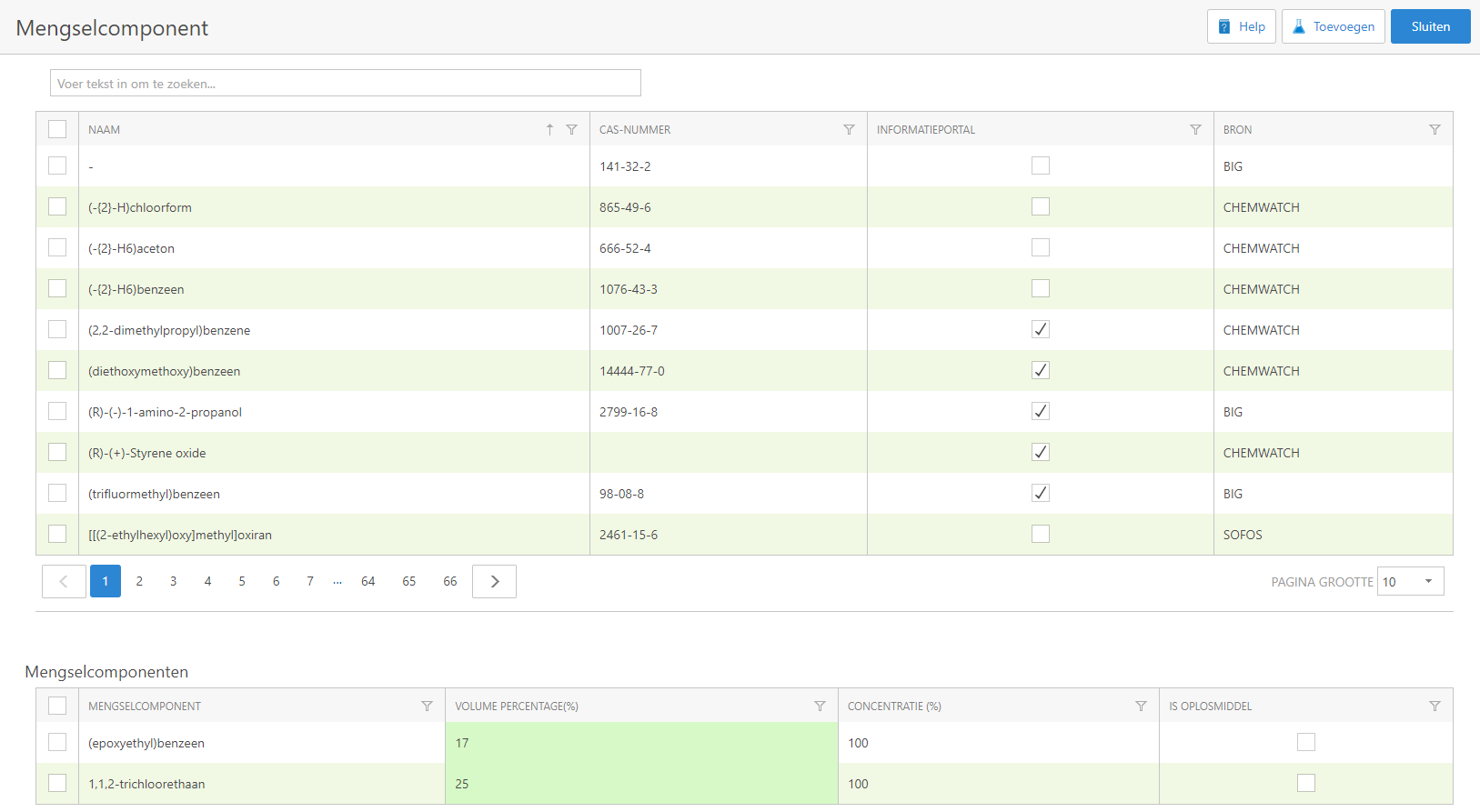
From this version on it is possible to create a new blend in a faster way. The method is now that all the components of the blend are selected and added first, after which the volume percentage per component can be entered. After pressing a button all data are at once entered into the substance.
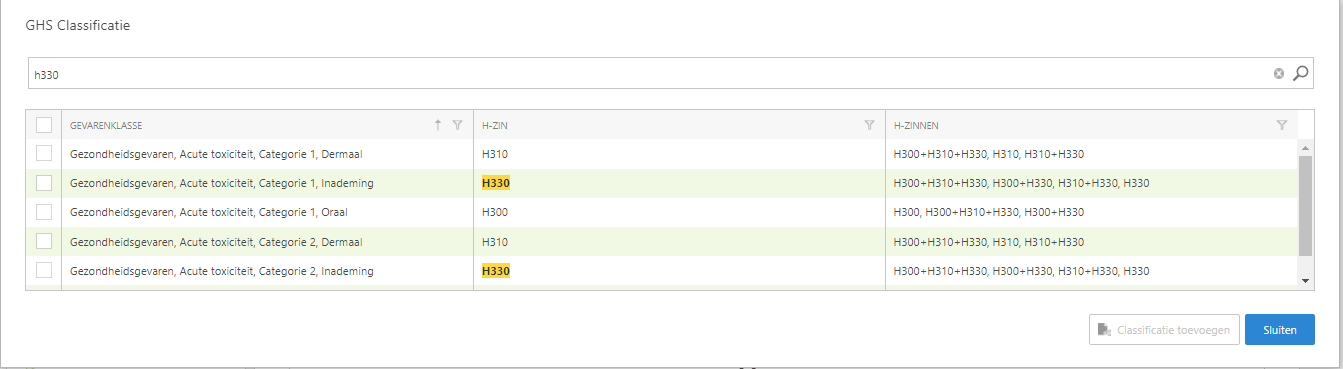
When selecting a hazard-class in a substance, the hazard-classes are shown extra clearly that have the linked H-phrase as a single H-phrase
When you want to add a classification to a SOFOS substance, you probably search for that classification based on the linked H-phrase. To make it easier to search for a classification, if you search based on an H-phrase, the classifications that have the searched H-phrase listed as a single H-phrase are now extra highlighted.
Classifications can now be added multiple at once as is already the case with H and P phrases
In order to simplify the entry of a new substance, from this version it is now also possible to add multiple classifications at once. In the screen of selecting the classifications an extra button is included ''
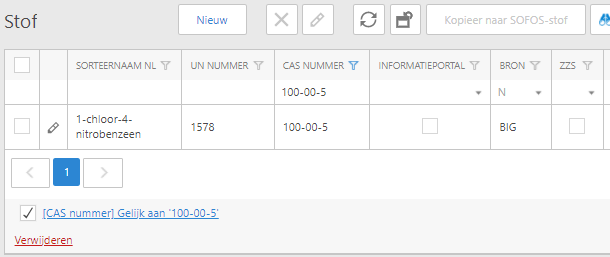
The 'Remove current filter' is now shown on the left so it is always in view.
When you place a filter on an overview it will be placed under the overview on the left side so that you can still adjust or turn off this filter. From this version on, the button to remove the filter will also be placed on the left side. To remove the filter, you no longer need to slide the screen to the left.
BRZO Analysis
If you store large quantities of hazardous substances, it could be that your organization falls under the regulation 'Decision on Risks of Severe Accidents 2015 (BRZO-2015/Seveso III)'. If so, you must comply with the rules and requirements described in it.
Using the BRZO analysis function, you can do an analysis based on the maximum stock or the actual stock present to determine whether your organization falls under the BRZO regime.
Unit in consumption report
In the consumption report, the unit of consumption is now placed in a separate column. This makes it easier to calculate with the values when exporting the list to Excel. It is also possible to convert the value and the unit to the basic unit. 100 ml will then be displayed as 0.1 l. This makes calculating in Excel even easier and it is now also possible to add up the consumption values of (previously) different units.
Various
- When receiving multiple pots (but in fact in any batch process where labels are created), the labels are now printed in the order of creation
- A pot can now also have its storage temperature defined.
- ARBO pictograms are now also visible with a substance in the information portal
- Prefer to log failed login attempts
- The limit value term 'MAC' has been replaced by 'OEL'.
- The pot overview can now also be searched by employee
- When reading external lists, it is possible to indicate that checkboxes should also be unchecked if the substance is not on the list
- H-phrases have now been added to the pot summary
